
Custom Deck
The Deck tab is a fully customisable grid of buttons. Build a control surface tailored to your stream - scene switches, mute controls, hotkeys, source toggles, and more, arranged however you like.
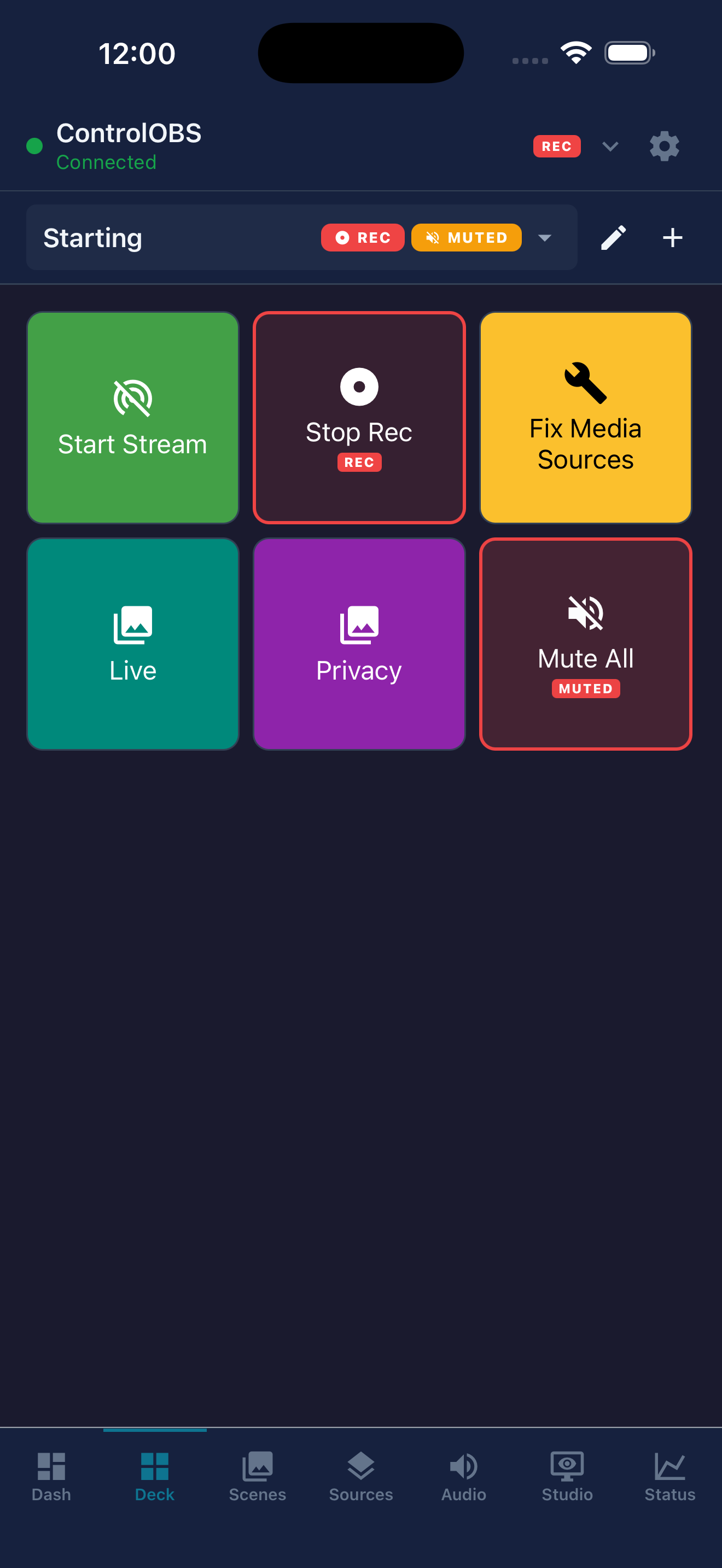
Custom Deck - a fully customised grid of action buttons
Adding buttons
Tap the + button at the top of the Deck tab to add a new button. Select the button type from the list, configure it, and tap Save. The button appears in the next available grid slot.
Button types
Scene Switch
Switches to a specific scene with a single tap. The button highlights when that scene is live, giving you a visual indicator of the current programme scene.
OBS Hotkey
Triggers any hotkey configured in OBS Studio. This lets you fire hotkeys remotely without needing keyboard access - useful for starting replays, switching profiles, or triggering custom script actions.
Toggle Source
Shows or hides a specific source in a specific scene. The button reflects the current visibility state of the source in real time.
Toggle Filter
Enables or disables a specific filter on a source. Useful for toggling effects like colour correction, noise gates, or blur on the fly during a stream.
Mute All
Mutes every audio source at once. Tap again to restore. The smart restore mode remembers which sources were unmuted before muting and brings back only those, rather than unmuting everything. If the snapshot is lost (for example after reconnecting), all sources are unmuted.
Fix Media Sources
Automatically detects media sources that have stopped playing (stuck, ended, or errored) and restarts them. Useful for looping background videos or music sources that sometimes fail during long streams.
Media Volume
A slider button for adjusting the volume of a specific media source. Drag the button left or right to change the level without opening the full audio mixer.
Customising buttons
Long-press any button to open its edit menu. From here you can:
Reordering buttons
Long-press a button and drag it to a new position in the grid. Other buttons shift to fill the gap.
Live state indicators
Buttons that correspond to a current state in OBS (for example a Scene Switch button for the active scene, or a Toggle Source button for a visible source) show a highlighted active state. This gives you an at-a-glance view of what is currently live without needing to check OBS.