
Sources
The Sources tab shows every item in the current scene. Toggle visibility, adjust transforms and crops, manage filters, and inspect nested scenes - all without touching your computer.
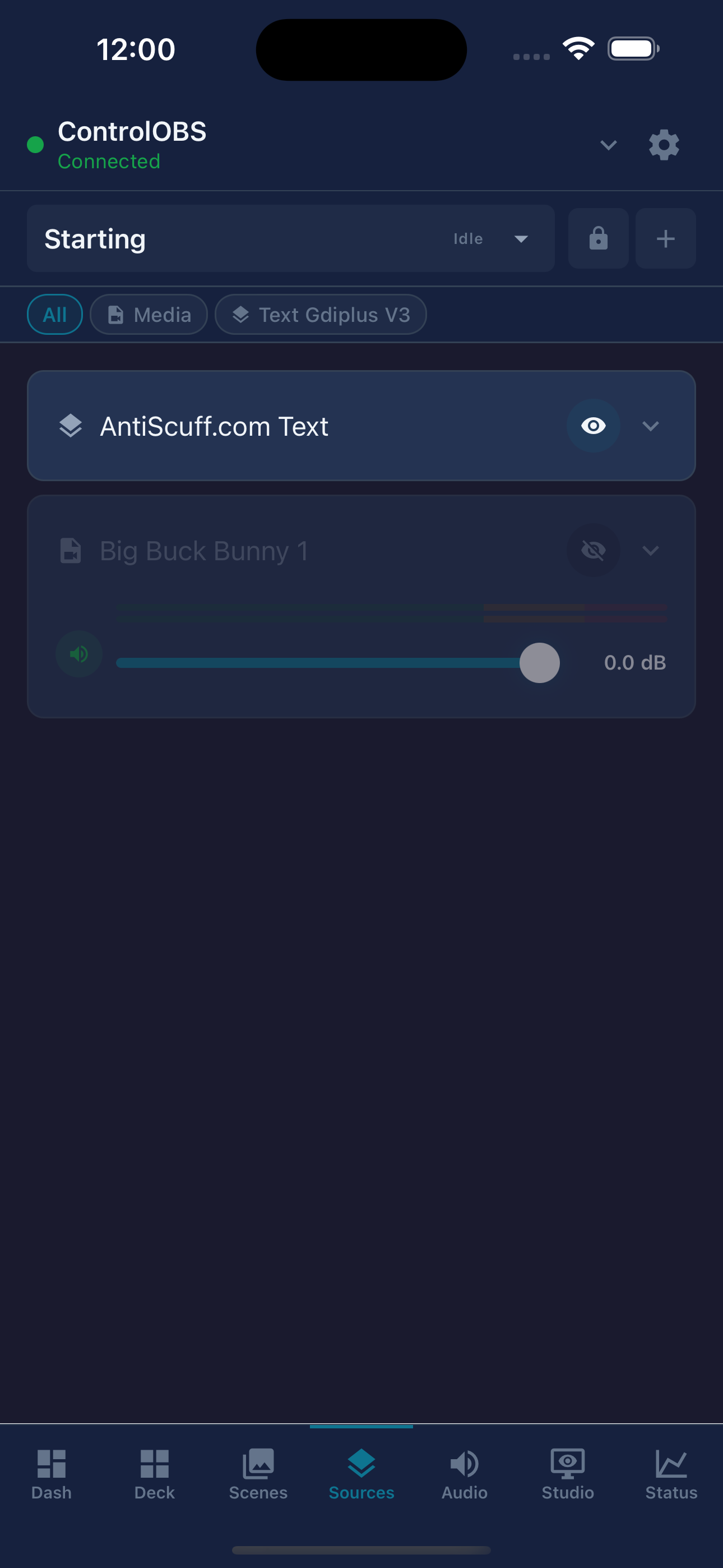
Sources tab - toggle visibility and inspect each source
Toggling visibility
Each source card has a visibility toggle (the eye icon). Tap it to show or hide the source in the current scene. The change takes effect immediately in OBS and is visible in the preview.
Reordering sources
Long-press a source card to enter reorder mode, then drag it to change its position in the source stack. Sources higher in the list appear in front of sources below them, matching the OBS source list behaviour.
Transform editor
Tap a source card to open the source inspector, then tap Transform. The transform editor lets you adjust:
Filters
Tap a source card to open the source inspector, then tap Filters. All filters applied to that source in OBS are listed. Tap a filter to enable or disable it without removing it.
Filter settings (such as colour correction values or noise suppression levels) cannot be edited from the app. You can only enable or disable filters. Use OBS Studio to adjust filter parameters.
Nested scenes
When a source is a Scene type (a scene used as a source inside another scene), the app shows a nested scene indicator. Tap it to drill into that scene and manage its sources directly, without switching your live programme scene.
Adding and removing sources
Tap the add button at the top of the Sources tab to add a new source to the current scene. You can add existing sources from other scenes or create new input sources. To remove a source, swipe left on its card and tap Remove.
Removing a source from a scene removes it from that scene only. The underlying input (camera, audio device, etc.) is not deleted from OBS unless you explicitly delete the input from the OBS source list.